Introduction
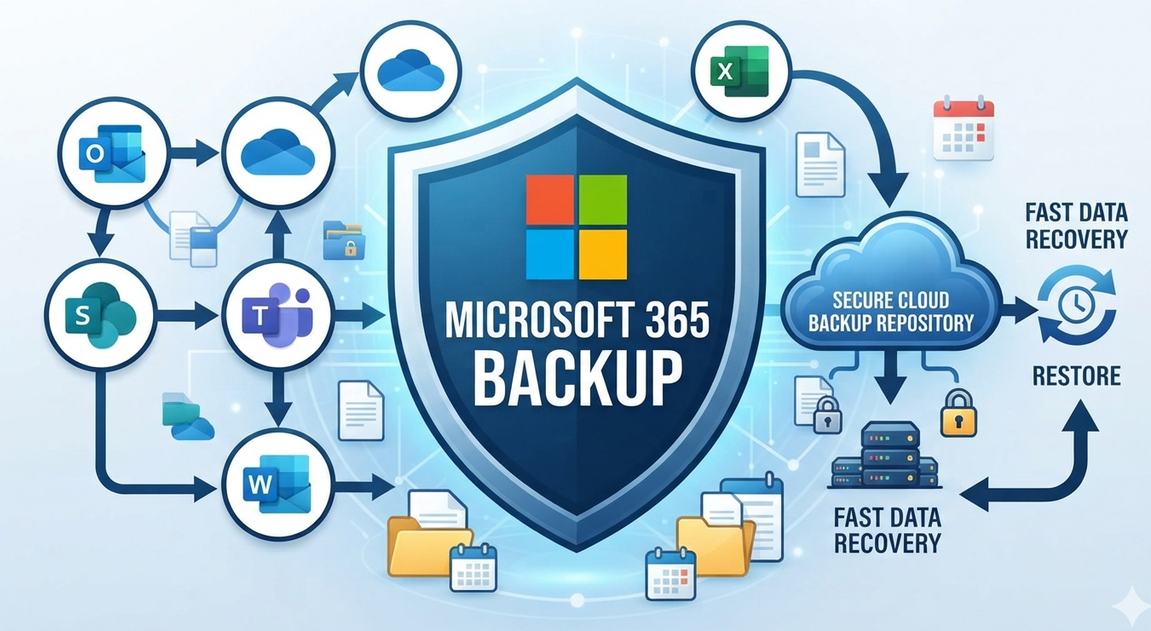
Microsoft 365 has become the operational backbone of many modern businesses. For many organisations, daily work would quickly grind to a halt without Exchange Online, SharePoint, OneDrive, Teams, Excel, and Word.
However, there is a common misconception that moving everything to the cloud means backup and data protection are automatically taken care of.
Microsoft provides extensive service resiliency, security features, retention capabilities, and backup options. However, under the shared responsibility model, organisations still remain responsible for protecting their data, identities, endpoints, configurations, and access.
For IT teams, the important question is therefore not simply:
“Is our Microsoft 365 data in the cloud?”
It is:
“If critical data is accidentally deleted, corrupted, encrypted, or otherwise lost, how quickly can we recover it?”
In my experience managing Microsoft 365 in a real business environment, I look at this in two layers: preventing everyday data loss at the endpoint and maintaining a proper recovery strategy for business-critical cloud data.
1. Preventing Everyday Data Loss: Microsoft 365 AutoSave
One of the most common frustrations for users is losing work because an application crashes or a document was never saved.
Imagine an employee spending several hours working on a complex Excel spreadsheet, only for Excel to stop responding. If the latest changes were never saved, recovering that work can be extremely difficult.
This is where AutoSave becomes useful.
How AutoSave Works
When AutoSave is enabled for supported Microsoft 365 applications, changes can be saved automatically when files are stored in supported cloud locations such as OneDrive for Business or SharePoint Online.
This also works together with Microsoft 365 version history, making it easier to recover an earlier version of a document when something goes wrong.
However, there is an important distinction:
AutoSave is not a backup solution.
It helps protect users from losing their recent work, but it does not replace a business-wide backup and recovery strategy.
Managing AutoSave Through IT Policies
For organisations using Microsoft Intune and Microsoft 365 Apps, IT administrators can centrally manage Office application settings rather than relying on every employee to configure them manually.
This is particularly useful in environments where IT wants to establish consistent Microsoft 365 practices across corporate devices.
For example, an organisation can use Intune and Microsoft 365 Apps policies to standardise settings related to OneDrive and Office applications.
Communication Still Matters
Whenever you introduce a company-wide policy, technical deployment is only half the job.
I always recommend communicating significant changes to employees.
Tell users:
- What is changing
- Why the change is being introduced
- Where their files should be saved
- How OneDrive and SharePoint are being used
- What AutoSave does—and what it does not do
A good technical policy can still fail if users don’t understand it.
2. Microsoft 365 and the Shared Responsibility Model
This is where the difference between service availability and data recovery becomes important.
Microsoft operates the underlying cloud infrastructure and provides a highly resilient Microsoft 365 service.
But your organisation still owns and manages important responsibilities around its data, identities, devices, configurations, and access controls.
For example:
Microsoft’s responsibilities include
- Microsoft 365 service infrastructure
- Physical data centres
- Underlying cloud infrastructure
- Service availability and platform resiliency
- Security of Microsoft’s own infrastructure
Your organisation remains responsible for areas such as
- Your business data
- User accounts and identities
- Access controls
- Device security
- Configuration
- Data protection requirements
- Recovery planning
This distinction is important because high availability is not the same thing as backup.
A highly available cloud service can continue operating perfectly while an administrator or attacker has deleted or modified important business data.
3. Why Native Microsoft 365 Features Aren’t the Whole Recovery Strategy
Microsoft 365 includes several useful data-protection capabilities, including version history, recycle bins, retention policies, and other recovery mechanisms.
Microsoft also now offers Microsoft 365 Backup for Exchange, SharePoint, and OneDrive, with configurable recovery windows.
So the question is no longer simply whether Microsoft provides backup functionality.
Instead, IT managers need to ask:
Does our current Microsoft 365 protection strategy meet our business’s recovery requirements?
Consider scenarios such as:
- A user accidentally deletes an important folder.
- A large number of SharePoint files are maliciously modified.
- A mailbox is compromised.
- A user account is deleted.
- An administrator makes an incorrect configuration change.
- A ransomware incident affects cloud-hosted files.
- The business needs to restore data from a known point in time.
The answer should be based on your organisation’s Recovery Point Objective (RPO), Recovery Time Objective (RTO), retention requirements, compliance obligations, and the capabilities of the recovery tools you have selected.
4. Dedicated Microsoft 365 Backup: Our Veeam Approach
In our environment, we use Veeam Data Cloud for Microsoft 365 as an additional layer of protection.
Veeam provides dedicated backup capabilities for Microsoft 365 workloads and maintains backup restore points separately from the live production environment.
The exact configuration depends on the organisation, but Microsoft 365 workloads such as Exchange Online, SharePoint Online, OneDrive, and Teams can be included in a dedicated backup strategy.
Veeam Backup for Microsoft 365
One option is Veeam Backup for Microsoft 365, where the organisation manages the backup infrastructure and repository.
This approach can provide greater control over:
- Backup infrastructure
- Repository location
- Retention configuration
- Backup schedules
- Backup copies
- Recovery operations
However, it also means the IT team is responsible for maintaining the infrastructure, storage, software, and associated operational processes.
Veeam Data Cloud
For organisations that don’t want to maintain their own backup infrastructure, Veeam Data Cloud for Microsoft 365 provides a managed cloud-based approach.
This can reduce the operational overhead associated with maintaining local backup servers and storage.
Veeam Data Cloud uses backup policies and retention settings to maintain recovery points, and its current capabilities also extend to protecting certain Microsoft Entra ID and Intune resources depending on configuration.
For our environment, the cloud-based approach means we don’t need to maintain another physical backup server just for Microsoft 365 data.
5. Backup Is Only Useful If You Can Restore
One of the biggest lessons I’ve learned in IT is:
A backup that has never been tested is only a backup assumption.
It’s easy to look at a successful backup job and assume everything is fine.
But what happens when you actually need to restore something?
A good Microsoft 365 recovery strategy should consider:
Recovery Point Objective (RPO)
How much data can the business afford to lose?
For example, if the last recoverable point is several hours old, could the business accept losing everything that happened after that point?
Recovery Time Objective (RTO)
How quickly does the business need the data back?
Restoring a single deleted document is very different from recovering hundreds of mailboxes or a large SharePoint environment.
Restore Testing
IT teams should periodically test scenarios such as:
- Restoring a deleted email
- Restoring a previous file version
- Recovering deleted OneDrive data
- Restoring SharePoint content
- Recovering data after an account deletion
- Confirming that administrators can actually perform the recovery
The goal isn’t simply to have successful backup jobs.
The goal is to know that recovery works when the business needs it.
6. Don’t Forget Entra ID and Intune
Microsoft 365 backup discussions often focus entirely on files, emails, and SharePoint.
But modern Microsoft environments depend heavily on Microsoft Entra ID and Intune.
Your identity and endpoint configuration can be just as important as the documents themselves.
Consider how much of your IT environment may depend on:
- Conditional Access policies
- Intune configuration profiles
- Compliance policies
- Device configurations
- Entra ID users and groups
- Application registrations
- RBAC assignments
- Endpoint management settings
A data recovery strategy should therefore consider the wider Microsoft cloud environment rather than looking only at Office documents.
Depending on the product and configuration, Veeam Data Cloud can also protect selected Entra ID and Intune resources, including Conditional Access policies and Intune policies.
This is particularly important for organisations moving toward a cloud-native endpoint environment.
7. What I Recommend for an IT Manager
There isn’t one backup architecture that fits every business.
However, I would start by asking these questions:
1. What data is business-critical?
Identify your most important Exchange, SharePoint, OneDrive, Teams, and other Microsoft 365 data.
2. What happens if it disappears tomorrow?
Don’t just think about accidental deletion.
Consider ransomware, compromised accounts, malicious insiders, configuration mistakes, and administrator errors.
3. How quickly do we need to recover?
Define realistic RPO and RTO requirements.
4. How long do we need to retain the data?
Retention requirements should be based on business, legal, regulatory, and contractual requirements rather than simply choosing an arbitrary number.
5. Who is responsible for the recovery?
Make sure at least one person or team knows exactly how to perform a restore.
6. Have we actually tested it?
Schedule recovery tests and document the results.
Key Takeaways
If I had to reduce my Microsoft 365 backup strategy to a few practical points, they would be:
- Use AutoSave to reduce everyday loss of unsaved Office work.
- Store business files in OneDrive or SharePoint rather than relying on local storage.
- Understand the shared responsibility model.
- Use Microsoft 365’s native recovery and backup capabilities where they meet your requirements.
- Consider dedicated backup solutions when your business needs additional recovery, retention, isolation, or operational capabilities.
- Protect the wider Microsoft environment, including Entra ID and Intune configurations where appropriate.
- Define RPO and RTO requirements.
- Test your restores regularly.
Conclusion
Microsoft 365 has transformed how businesses store, access, and collaborate on information.
But moving data to the cloud doesn’t eliminate the need for a recovery strategy.
For me, Microsoft 365 protection has two important layers.
The first is preventing everyday data loss through good user practices, OneDrive and SharePoint, AutoSave, and appropriate endpoint policies.
The second is business recovery—making sure critical Microsoft 365 data and configurations can actually be recovered when something goes wrong.
In our environment, Veeam Data Cloud provides an additional layer of protection alongside Microsoft’s own capabilities.
The most important lesson is simple:
Don’t ask only whether your Microsoft 365 data is backed up. Ask whether you can recover it when the business needs it.
That is the difference between having a backup strategy and having a real recovery plan.
Leave a Reply