Introduction
Microsoft 365 security doesn’t have to make everyday work complicated. For small and medium-sized businesses, a consistent set of security checks can help reduce the risk of compromised accounts, excessive administrator privileges and misconfigured access policies.
As an IT Systems Manager, I believe security works best when it becomes part of routine IT operations rather than a task that only gets attention after an incident.
This checklist focuses on three areas: privileged access management, location-based Conditional Access and Microsoft Secure Score. It also includes a practical review schedule that IT teams can adapt to their own environment.
The exact configuration will depend on your Microsoft 365 licences, business requirements and existing security controls.
1. Identity and Role Management with Privileged Identity Management (PIM)
Permanent Global Administrator privileges should be limited to the accounts that genuinely need them. If an administrator account is compromised, an attacker may gain access to critical settings across the tenant.
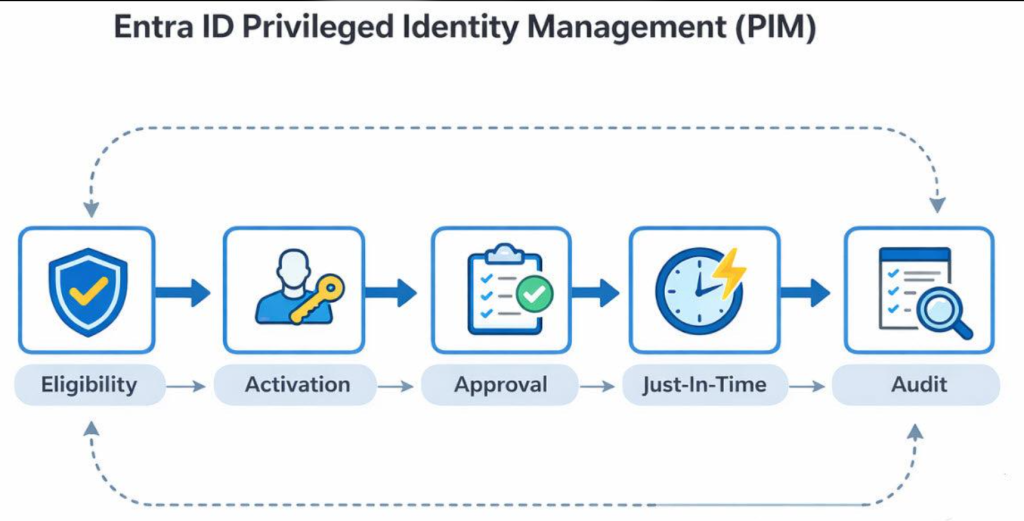
Microsoft Entra Privileged Identity Management (PIM) helps reduce this risk by allowing eligible administrators to activate privileged roles only when required, for a limited period.
Use just-in-time administrator access
Instead of keeping every administrator role permanently active, consider using PIM to make eligible assignments available when needed.
A typical workflow looks like this:
- An administrator requests activation of an eligible role.
- The administrator provides a business justification and any required ticket reference.
- If approval is configured for that role, an authorised approver reviews the request.
- The role becomes active for the configured period.
- The assignment expires automatically when the activation period ends.
PIM can also require multifactor authentication (MFA) during activation, depending on the configuration.
Assign only the roles each person needs
Global Administrator and Privileged Role Administrator are highly privileged roles. They should be assigned sparingly because they can enable significant changes to tenant access and administration.
Where possible, give IT staff narrower roles that match their responsibilities. For example, a Helpdesk Administrator or Password Administrator may be sufficient for certain support tasks without granting full tenant control.
Review both eligible and active role assignments. PIM helps control when access is activated, but it doesn’t remove the need to review who is eligible for privileged access in the first place.
Check licensing before implementing PIM
PIM requires an eligible Microsoft Entra ID P2 or Microsoft Entra ID Governance licence. This applies to users with eligible or time-bound privileged assignments and users who approve activation requests.
Don’t assume that every Microsoft 365 E3 or E5 subscription automatically covers every PIM user. Check the actual licences assigned to administrators and approvers against Microsoft’s current requirements.
Maintain emergency access accounts
PIM should not be the only way to recover administrative access.
Microsoft recommends maintaining emergency access, often called break-glass, accounts to help recover a tenant if normal administrator accounts become unavailable or Conditional Access is misconfigured.
These accounts should be carefully secured, monitored and tested. Their credentials should be stored securely, their use should generate alerts, and they should be excluded from Conditional Access policies where necessary to avoid accidental tenant lockout.
Keep emergency access accounts separate from everyday administrator accounts and use them only when required.
2. Location-Based Conditional Access: Restricting Overseas Sign-ins
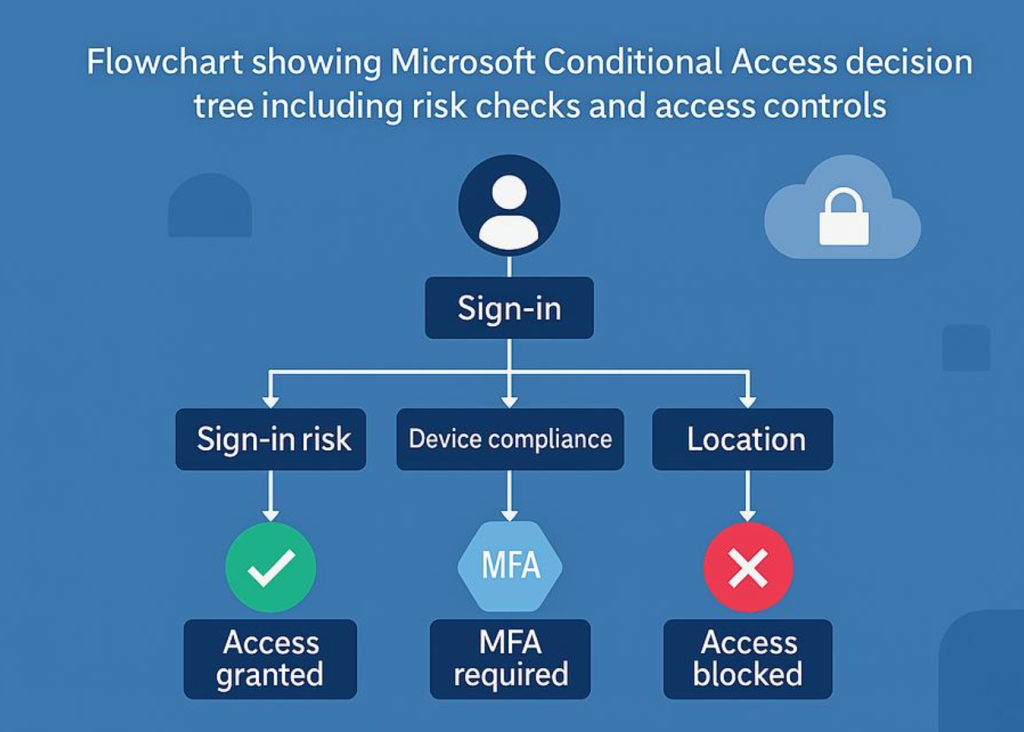
Conditional Access can use sign-in location as one of the signals that determine whether access should be allowed. For organisations that operate only in Australia, blocking sign-ins from countries where the business has no legitimate activity can reduce unwanted access attempts.
However, location-based blocking should be one layer of security, not a replacement for MFA, risk-based controls or strong identity protection.
Establish a sensible baseline
A typical starting point is to configure Conditional Access policies that:
- Require MFA for users accessing relevant Microsoft 365 resources.
- Block sign-ins from countries or regions where access is not permitted by the business.
- Exclude emergency access accounts where required to reduce the risk of tenant lockout.
- Are tested in report-only mode before enforcement.
Conditional Access evaluates the public IP address or other supported location signals. A sign-in appearing to originate from Australia does not automatically mean it is safe, and location detection is not a perfect indicator of a user’s physical whereabouts.
Manage overseas travel exceptions carefully
Staff may need access while travelling overseas for work or personal reasons. Rather than permanently weakening the baseline policy, establish a documented process for temporary exceptions.
For each exception:
- Confirm the user’s identity, destination and travel dates.
- Apply a narrowly scoped policy change that permits the required access while retaining appropriate controls, including MFA.
- Record who approved the exception and when it should end.
- Review the configuration when the user returns.
- Remove the temporary exception and confirm that the baseline policy applies again.
For example, a temporary policy name could be:
TEMP – Travel – Japan – J.Smith – Until 15 Nov
Use the actual travel dates and your organisation’s naming convention. The name alone does not make an exception expire automatically, so assign an owner and record a review or removal date.
Important: Test policy interactions carefully. A new policy that allows a destination country will not necessarily override another policy that blocks it. Review all applicable policies and their combined effect before granting access.
3. Microsoft Secure Score: Measure Progress, Not Just the Number
Microsoft Secure Score is available in the Microsoft Defender portal. It measures aspects of an organisation’s security posture and recommends actions to improve the protection of identities, devices, apps and other supported services.
It is useful for identifying gaps, tracking progress and helping IT teams prioritise security improvements.
Compare your score with similar organisations
Secure Score includes comparison information that can show how your organisation compares with similar organisations, including those with a similar number of user licences.
This can provide useful context, but the comparison should not become the only measure of success. Two organisations may have different security requirements, risk profiles, licences and technical environments.
We recommend tracking your own score over time and using peer comparisons as an additional reference rather than treating a particular score as a guarantee of security.
Review a few meaningful recommendations each month
Instead of chasing 100% simply to maximise the score, review the recommendations and decide which actions will reduce meaningful risk without creating unnecessary operational problems.
A practical monthly process is to:
- Review the highest-priority recommendations.
- Identify actions that are relevant to your environment.
- Assess user impact, licensing requirements and implementation effort.
- Assign an owner and target date to each selected action.
- Implement the change and verify the result.
- Document any recommendation that is deferred or accepted as a risk, including the reason and review date.
Secure Score is a useful guide, but it does not capture every possible risk. A high score does not guarantee that an organisation is secure, and a lower score does not necessarily mean every outstanding recommendation is appropriate for that environment.
4. Monthly Microsoft 365 Security Review Checklist
Use the following table as a starting point. Adjust the frequency to match your organisation’s size, risk and operational requirements.
| Security area | Action | Suggested frequency |
|---|---|---|
| Identity and access | Review PIM eligible assignments, activation history and approver membership | Monthly |
| Conditional Access | Review active policies, exclusions and recent changes | Monthly |
| Travel exceptions | Check temporary access exceptions and remove those that are no longer required | Weekly, and after travel |
| Administrator privileges | Review permanent Global Administrator assignments and confirm each is justified | Monthly |
| Emergency access | Review sign-in alerts and test emergency access procedures safely | Quarterly, and after relevant changes |
| Tenant security posture | Review Secure Score trends and prioritise two or three meaningful recommendations | Monthly |
| Security follow-up | Track outstanding actions, owners, deadlines and accepted risks | Monthly |
A few additional checks worth considering
Depending on your Microsoft 365 environment, a broader review could also include:
- Checking MFA registration and authentication methods for administrators.
- Reviewing risky sign-ins and identity protection alerts where licensed.
- Checking whether managed devices meet your organisation’s compliance requirements.
- Reviewing external users and guest access.
- Confirming that audit logs, alerting and incident response procedures are working as expected.
These checks are not a substitute for a formal security assessment, but they can help build a more consistent operational routine.
Conclusion
A secure Microsoft 365 environment does not mean locking down every setting without considering how people work. It means applying appropriate controls, reviewing them regularly and making sure exceptions do not become permanent weaknesses.
For small businesses, three useful starting points are:
- Use PIM and least-privilege role assignments to reduce unnecessary standing administrator access.
- Apply Conditional Access policies carefully, including MFA, location restrictions and controlled travel exceptions.
- Review Microsoft Secure Score regularly and prioritise improvements based on actual business risk.
A monthly checklist gives IT teams a repeatable process for maintaining these controls. The real value comes from following through: reviewing changes, removing outdated exceptions, documenting decisions and checking that security settings continue to work as intended.
Leave a Reply