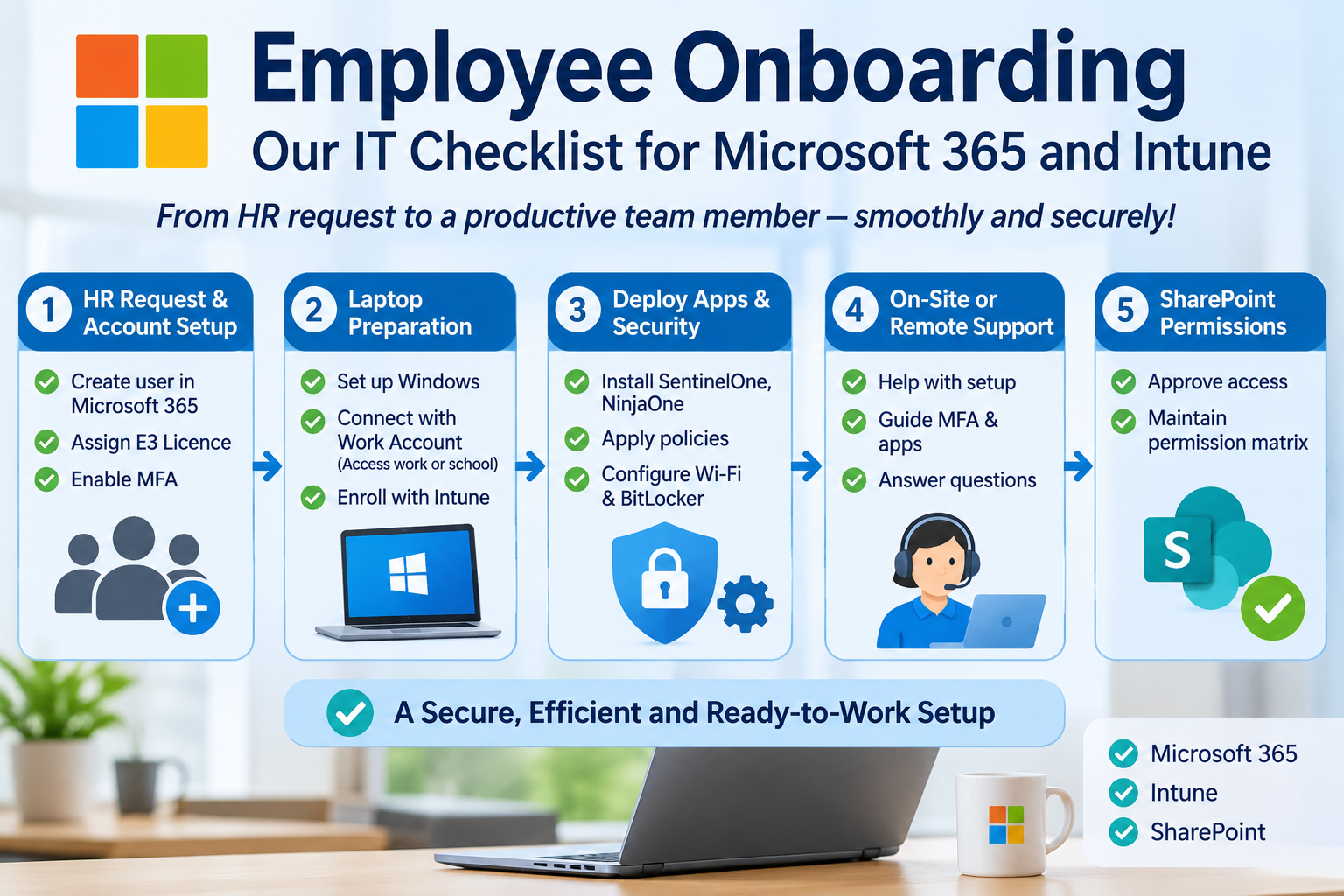
An efficient IT onboarding process is essential for keeping a business secure and productive. When a new employee joins, their first experience with the company’s IT environment should be straightforward, from receiving their laptop to accessing email, business applications and shared files.
A standardised onboarding workflow helps IT teams reduce manual work, avoid configuration mistakes and ensure employees have the tools they need from day one.
Following my previous article about Microsoft 365 offboarding, this post covers the other side of the employee lifecycle: onboarding.
I will share how we manage new employee onboarding using Microsoft 365, Microsoft Intune and our endpoint management tools. One important change in our approach is that new laptops no longer join our traditional hybrid Active Directory domain. Instead, they are joined directly to Microsoft Entra ID and managed through Intune.
Step 1: HR Request and Microsoft 365 Account Provisioning
Our onboarding process starts when HR submits a new employee request through our IT ticketing system. The request provides the information IT needs to prepare the employee’s account, laptop and system access.
Creating the Microsoft 365 account
For new employees, we create the user account directly in the Microsoft 365 Admin Center. The main steps are:
- Create a new user account with the employee’s details.
- Assign a Microsoft 365 E3 licence, which covers the services and applications our standard roles require.
- Set a temporary password that the employee must change at first sign-in.
- Make sure the account is in scope for our MFA registration and security policies.
Once the account is ready, we move on to preparing the laptop.
Step 2: Joining the Laptop to Microsoft Entra ID
Traditionally, many organisations have joined new Windows computers to an on-premises Active Directory domain. For new laptops, we now use Microsoft Entra join instead.
Our preparation process is:
- Start the new laptop with an initial local administrator account.
- Complete the initial Windows setup and install any required updates.
- Rename the computer according to our company naming convention.
- Open Settings → Accounts → Access work or school.
- Select Join this device to Microsoft Entra ID and sign in with the employee’s Microsoft 365 work account.
- Restart and confirm that the device appears as Entra joined and enrolled in Intune.
Join vs Connect: On the Access work or school page, the main Connect button only registers the device with Entra ID — the scenario intended for personal (BYOD) devices. For a company-owned laptop, use the Join this device to Microsoft Entra ID link below it so the device is fully joined and managed. With automatic MDM enrolment configured in your tenant, Intune enrolment happens as part of the join.
Removing the dependency on domain connectivity and traditional domain-join procedures makes the initial setup simpler, particularly for laptops going to remote employees.
Step 3: Automated Software Deployment and Security Configuration
Once the laptop is joined and enrolled in Intune, the assigned policies and applications are applied automatically. Rather than installing every application by hand, we use Intune to deploy:
- SentinelOne: endpoint security and threat protection
- NinjaOne: remote monitoring and management
- Corporate Wi-Fi: wireless network profile
- Printers: required printer configurations and drivers
- Device security: BitLocker, Microsoft Defender and other configuration policies
We also apply Intune compliance policies, which work together with Conditional Access. A device has to meet our security requirements before it can access company resources, so a new laptop is protected from the moment the employee signs in.
Deployment isn’t instant. Timing depends on device connectivity, Intune check-in activity and application assignment settings, so we build that time into the preparation schedule. Before handing over the laptop, we confirm that the essential applications are installed and the device shows as compliant in Intune.
Step 4: On-Site or Remote Laptop Handover
Not every new employee starts work from the same location, so our process supports both office-based and remote employees.
On-site onboarding
When a new employee comes to the office, we help them with:
- Signing in with their Microsoft 365 account and setting their own password
- Completing MFA registration
- Confirming access to Outlook, Teams and other Microsoft 365 apps
- Checking that OneDrive and SharePoint are accessible
- Connecting to the corporate Wi-Fi
- Confirming that essential applications are working
This is also a good opportunity to answer basic IT questions before they start their normal work.
Remote onboarding
For employees who cannot visit the office, we arrange secure laptop delivery to their preferred location. Once the laptop arrives, IT walks them through first sign-in, MFA registration and any remaining configuration over the phone or through a remote support session.
The goal is to give remote employees the same level of IT support as those starting in the office.
Step 5: SharePoint Access Management and Permission Tracking
Our organisation relies heavily on SharePoint for departmental document storage and collaboration, so new employees need access to the right sites for their role.
Manager approval and access levels
Access is granted based on established role requirements or direct manager approval. A new employee may need access to:
- Their department’s SharePoint site
- Shared operational documents
- Project-specific document libraries
- Other approved business resources
We generally use two permission levels:
- Read: view and download documents
- Read/Write: view, upload and edit documents
Wherever possible, we assign permissions through groups — such as a site’s Visitors or Members group — so that access follows the role rather than the individual. Direct, individual permissions are used only for exceptions, such as a specific folder or a short-term project need.
Maintaining a SharePoint permission matrix
Group-based access keeps things manageable, but exceptions are easy to lose track of. Our IT team therefore maintains a central Excel spreadsheet of the SharePoint sites used across the organisation:
| Information | Example |
|---|---|
| SharePoint site | Finance Department |
| Site URL | SharePoint site address |
| Access level | Read or Read/Write |
| Granted via | Group or individual (exception) |
| Approval | Department manager |
| Assigned users | Relevant employees |
This makes it easier to check existing access, process new requests and review permissions when employees change roles or leave the company — which ties directly into our offboarding process. The spreadsheet is an IT administration record with access restricted to authorised staff.
Our Employee Onboarding Checklist
| Stage | Action | Tools / Methods |
|---|---|---|
| 1. HR request | Receive new employee details | IT ticketing system |
| 2. Account | Create user account and assign E3 licence | Microsoft 365 Admin Center |
| 3. Device | Join laptop to Microsoft Entra ID | Windows – Access work or school |
| 4. Management | Apply configuration and compliance policies | Microsoft Intune, Conditional Access |
| 5. Applications | Deploy security and management software | Microsoft Intune |
| 6. Handover | On-site or remote setup assistance | IT support |
| 7. Permissions | Assign approved SharePoint access | SharePoint groups, manager approval, Excel matrix |
Frequently Asked Questions
Q1. Do new laptops still join the traditional Active Directory domain? No. New laptops are joined directly to Microsoft Entra ID using the employee’s work account and managed through Intune.
Q2. How are applications such as SentinelOne and NinjaOne installed? They are assigned as Intune apps. Once the device checks in, the applications install automatically without IT installing each one manually.
Q3. Why not use Windows Autopilot? Autopilot is our next step. Our current process still involves some manual preparation — the local admin account, renaming and the Entra join itself. Autopilot will let us ship laptops straight from the supplier and have them configure themselves on first sign-in.
Q4. How do you manage SharePoint permissions for new employees? Access is based on departmental requirements or manager approval and is assigned through groups wherever possible, with individual permissions only for exceptions. A central Excel matrix tracks sites, access levels and exceptions.
Conclusion
A good onboarding process should be repeatable, secure and easy for the IT team to manage.
Our approach combines Microsoft 365 account provisioning, Microsoft Entra join, Intune application and compliance management, and group-based SharePoint access. Moving away from hybrid domain joining has already reduced the manual configuration needed for each new laptop, and adopting Autopilot will take that further.
Not every part of the process is automated yet, and some hands-on support is still necessary. But a documented workflow and a consistent checklist make a significant difference.
The goal is simple: when a new employee receives their laptop, they should be able to sign in securely, access the applications they need and start working with minimal IT intervention.
Leave a Reply